Skip to content
Zipdine

Restaurant OS · built for India

Every table.In sync.

Guests order from the table. Staff approve. The kitchen cooks. The floor stays in sync.

  1. Guest orders
  2. Staff approve
  3. Kitchen prepares
  4. Ready at the table
Concept preview with sample dataStage 2 of 5: Placed. The order is sent. Staff see it and can approve it. Amber follows Table 6’s order; grey tickets are other tables.

How a day works

From the first scan to the last bill.

One order, followed through the whole room. Every person sees the same order in the same state, so nobody has to ask.

  1. Open the day

    Tables, menu and staff are already set up. Mark what is sold out, and service can start.

  2. A guest scans the table QR

    The menu opens in the phone's browser: no app, no account. Each guest can order from their own phone, or a waiter can take the order by hand.

  3. A waiter approves the order

    The order arrives with its table. A waiter checks it and approves, so nothing reaches the kitchen by mistake.

  4. The kitchen display shows the ticket

    Tickets are sorted by station, with the oldest clearly marked. Optional spoken alerts in Hindi announce new orders; the text is always on screen.

  5. Ready: the waiter is alerted

    When the kitchen marks a dish ready, the waiter is told, takes it to the table and marks it served.

  6. One bill, then payment

    Every order from the table sits on one bill. Staff record how the guest paid, cash, UPI or card, and hand over a receipt.

  7. Close the day

    Count the cash, compare it with what was sold, and close the day with a clear summary.

Order journey

Follow one order,
table to table.

Be the guest, then the staff, then the kitchen, then the waiter. One order, six steps, and every screen stays in step with the others.

Concept preview with sample dataTry it yourself: every button on the three screens works.

  1. Current: Order
  2. Approve
  3. Receive
  4. Prepare
  5. Ready
  6. Handoff

Start at the table

Every table has its own QR code. Scanning it opens that table's menu in the browser, with no app to install.

On the guest phone, open the menu from the table QR.

Start at the table. On the guest phone, open the menu from the table QR.

Table 6 · Terrace

Scan the code
on your table

The menu opens in your browser. No app to install.

The code is real: scan it with your phone to open the demo.

The product

One workflow, four people.

Zipdine is a restaurant operating system for Indian cafés and restaurants. Here is what it does for each person in the room.

Concept preview with sample data

01Guests

Scan, choose, order.

Every table has its own QR code. Guests open the menu in their browser, pick dishes and send the order, without installing an app or waiting to catch someone's eye.

  • Veg and non-veg clearly marked, prices in rupees
  • Options, add-ons and notes for each dish
  • Each guest at a table keeps their own cart
  • Live status from approved to served, and a one-tap repeat order
02Waiters

Approve before it cooks.

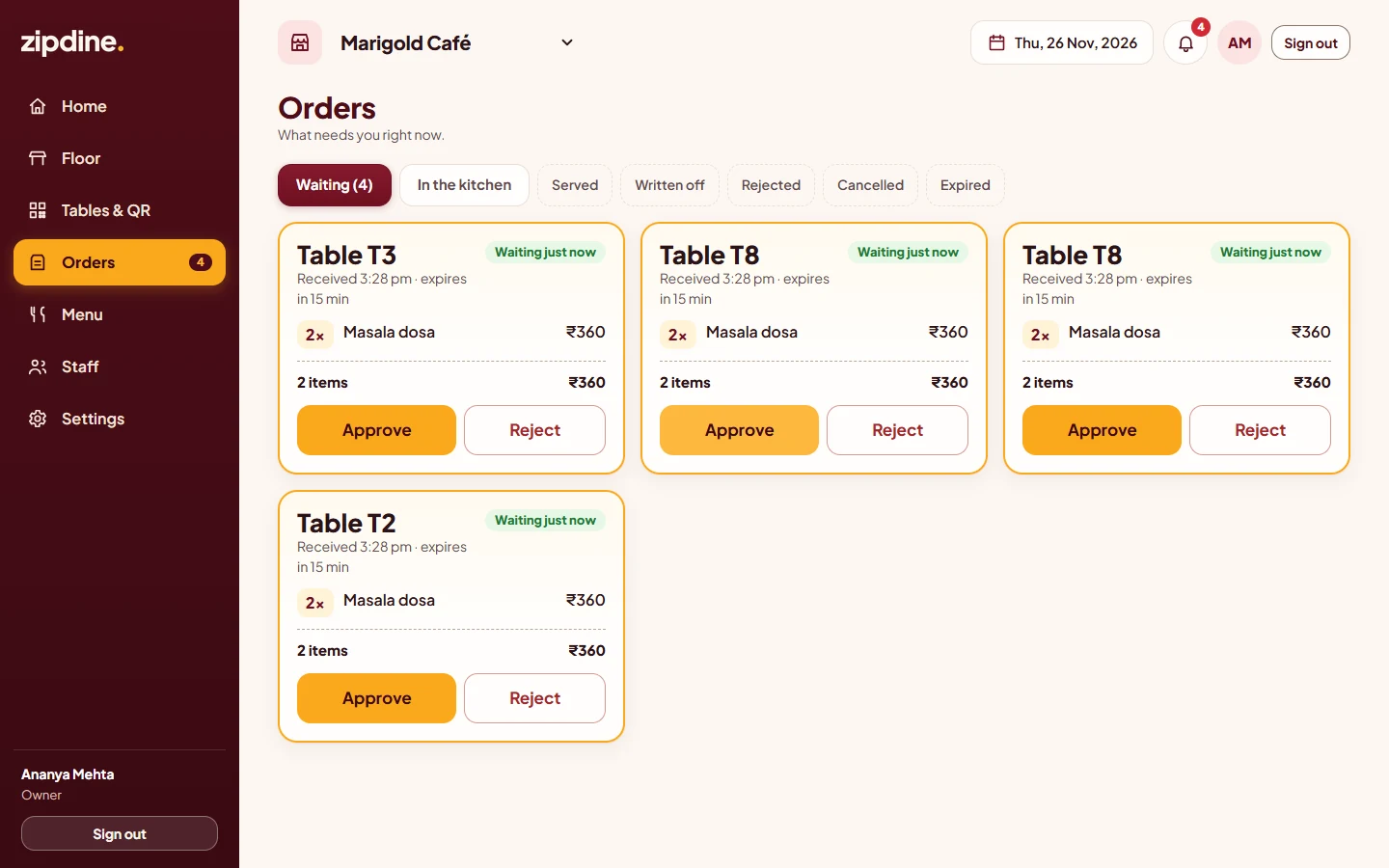
Waiters see every new order with its table, approve it, and carry ready food to the guest. Tables that need attention stand out on the floor.

  • Orders wait for approval before the kitchen sees them
  • Take an order by hand for guests without a phone
  • Answer a call for water, cutlery or the bill
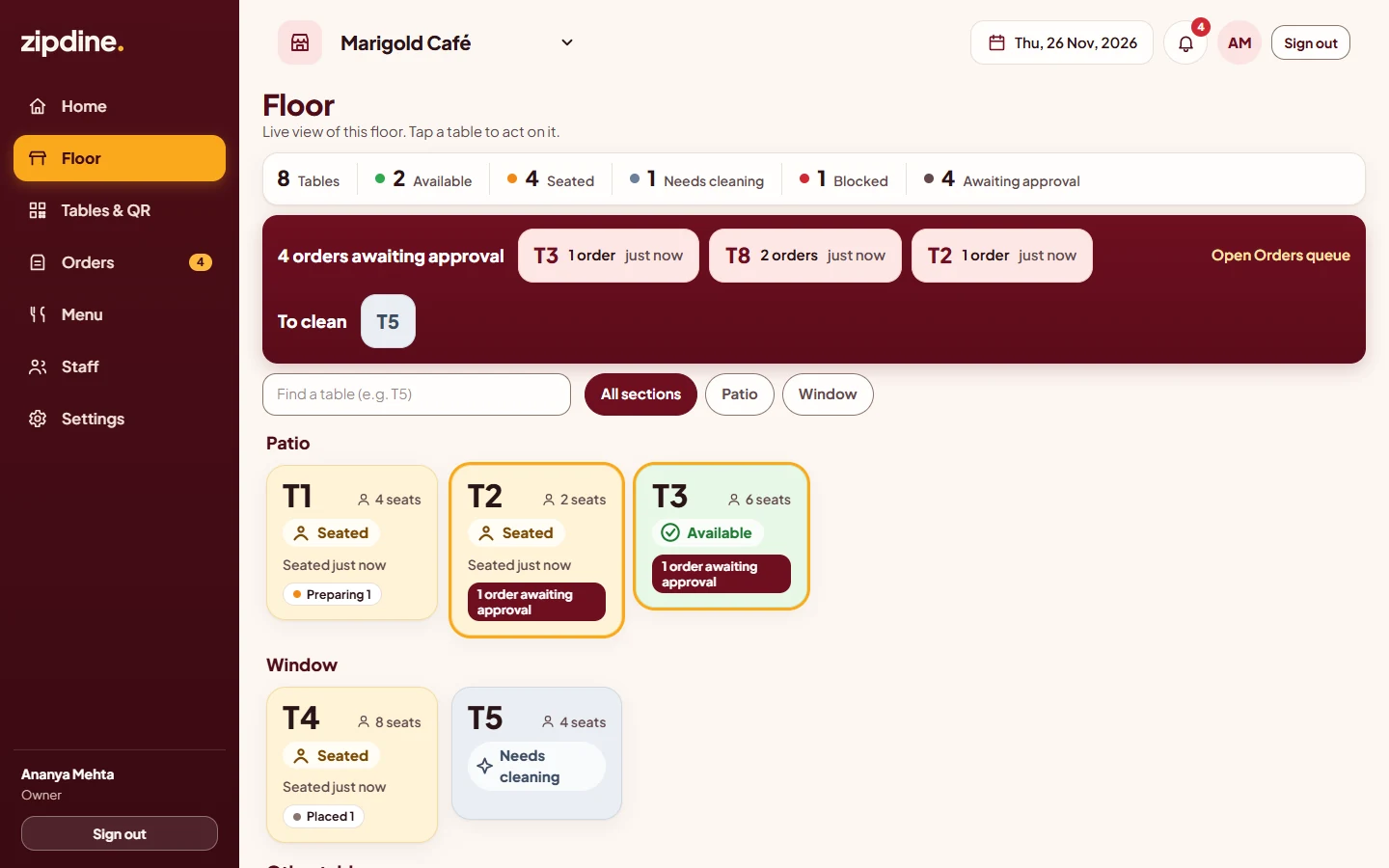
  • See at a glance which tables need approval, serving or cleaning
03Kitchen

Tickets, not shouting.

Approved orders appear on a kitchen display as tickets that move from new, to preparing, to ready, with the table and any notes in view.

  • One ticket per order, split by station
  • Clear columns, with ticket age and priority
  • Optional spoken alerts in Hindi; text is always shown
  • The waiter knows the moment a dish is ready
04Owners

Your menu, tables and floor in one place.

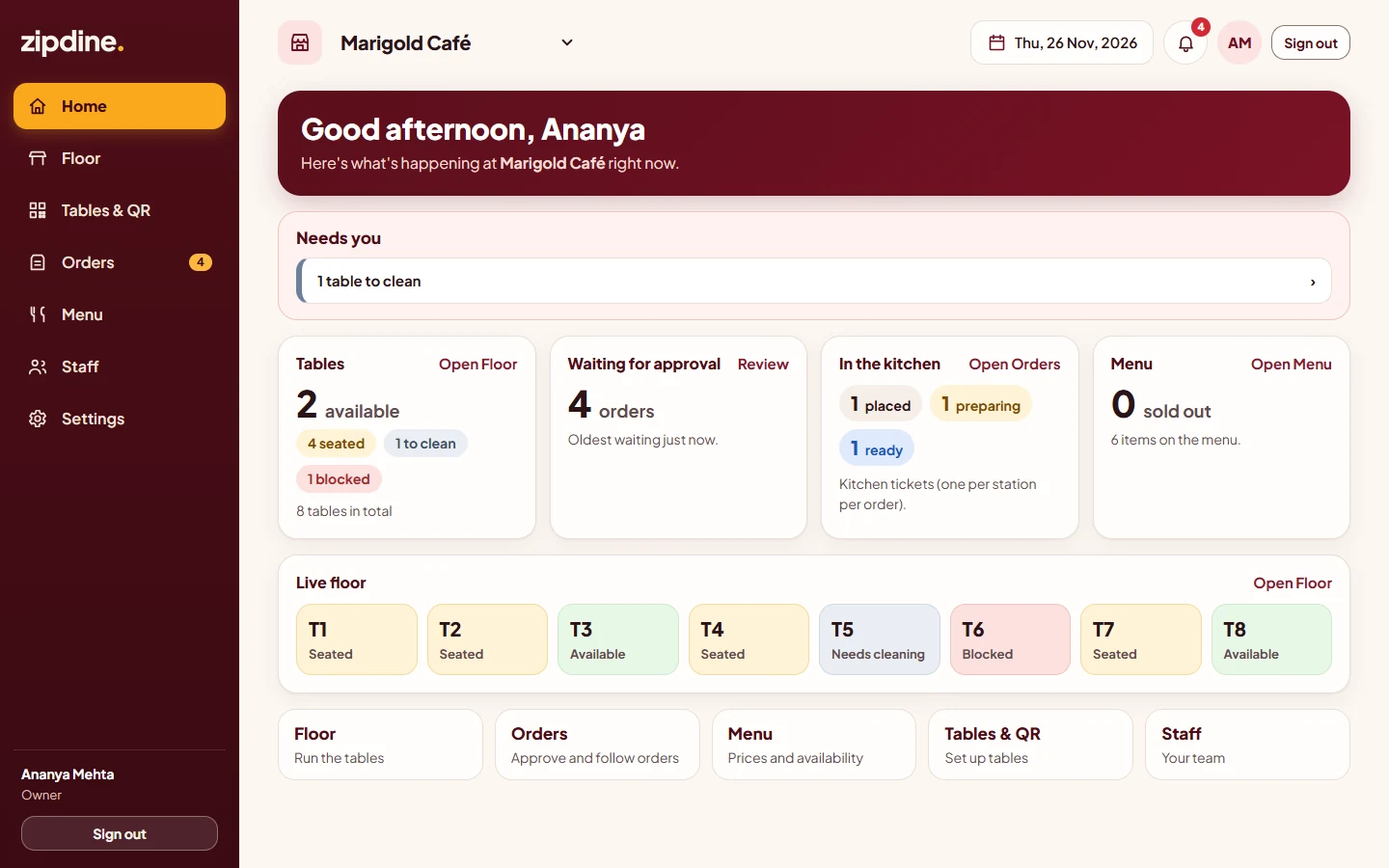
Owners keep the menu and prices up to date, set up sections, tables and a QR code for each, manage the team, and see how the floor is doing right now.

  • Menu items, availability and prices
  • Sections, tables and a QR code for each
  • Staff accounts with roles and permissions
  • A live view of tables, orders and the kitchen

The owner dashboard

See the whole restaurant at a glance.

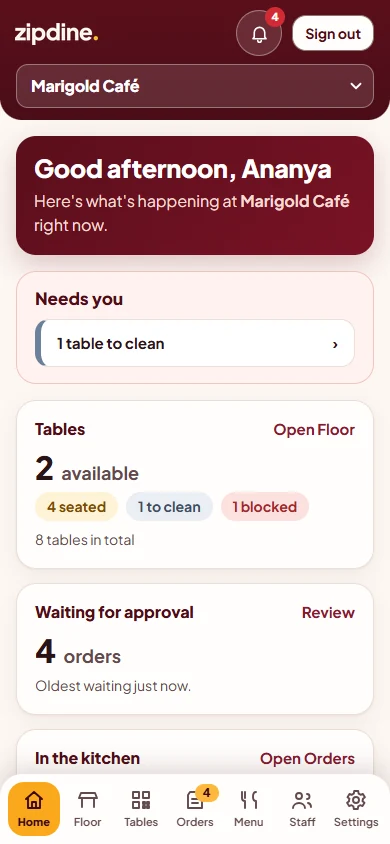
Real screens from the owner dashboard, filled with sample data for a made-up café: what needs you right now, the orders waiting for approval, and every table on the floor. It works on a computer, a tablet or a phone.

Real screens, sample data

The owner dashboard home screen on a phone.
The same dashboard on a phone.Owners and managers can check the floor and approve orders from wherever they are in the restaurant.

Floor operations

See which tables
need you.

A busy floor hides small problems: an order nobody approved, food ready at the pass, a table still to clear. Zipdine puts them in one list, most urgent first.

Concept preview with sample dataTap a table to see what staff would do next.

Needs attention

Selected table

Table 2

Needs approval

4 seats · Indoor · 3 items

A new order is waiting for staff approval.

Beyond the dining room

The business behind the day.

Taking an order is the start. Zipdine is built to carry it through the bill, the books and the stockroom, so you can run the whole business on one system.

Built to be trusted
  • Roles, not shared logins

    Each person has an account. Roles decide who can approve, cancel, close a table or see money.

  • A record of every change

    An activity log shows who changed what and when, and it cannot be edited afterwards.

  • No double orders

    A repeated tap or a flaky connection never creates the same order twice.

  • Your data stays yours

    Each restaurant's information is kept apart from every other restaurant's.

  1. 01

    Billing and payments

    One bill per table, with every order on it.
    • Discounts with limits, and a record of who gave them
    • Service charge and tax lines that you set up
    • Cash, UPI and card payments recorded, including split payments
    • Receipts you can print or share
    • Voids and refunds that are recorded, never erased
  2. 02

    Reports and the day's close

    End the day knowing the numbers add up.
    • Sales by day, by dish and by hour
    • Payments by type, and cash counted against cash expected
    • Discounts, voids and refunds in one view
  3. 03

    Stock and food cost

    See what each dish costs you.
    • Ingredients and recipes for every dish
    • Stock that goes down as dishes sell
    • Wastage and stock counts
    • Suppliers and purchase orders
    • Cost and margin for each dish
  4. 04

    More than one outlet

    Grow without starting again.
    • Several outlets under one owner
    • A shared menu, with changes for a single outlet
    • Roles set for each outlet
    • Reports for each outlet and for all together
  5. 05

    Takeaway, delivery and online

    Every order in one queue.
    • Takeaway and counter orders without a table
    • Your own online ordering link
    • Orders from delivery apps entered or imported alongside your own
    • Check what each app paid against what you sold
  6. 06

    Guests and loyalty

    Know your regulars, with their consent.
    • Optional feedback after a meal
    • Loyalty points and offers
    • Reservations and a waiting list
    • Messages only to guests who agreed to them

Why Zipdine

Fewer dropped handoffs.

A busy service is a chain of small handoffs. Zipdine is designed to keep every one of them in view, without asking anyone to be a hero.

  1. 01

    Fewer missed orders

    The guest enters their own order and it goes straight into the workflow. There is no scribbled chit to lose or order to remember.

  2. 02

    Less running around

    Approval, the kitchen and the handoff happen on shared screens, instead of calls across the floor and trips to the pass to ask.

  3. 03

    One connected workflow

    Guests, staff, the kitchen and the owner all look at the same order in the same state, from the table to the bill.

Questions

Straight answers.

What a restaurant owner usually asks first.

Do guests need to install an app?

No. Guests scan the QR code on the table and the menu opens in their phone's browser. There is no app to install and no account to create.

What do I need to run Zipdine?

A phone, tablet or computer with a web browser for your staff and kitchen. There is nothing to install.

Do staff have to approve every order?

By default, yes. A waiter approves each guest order before the kitchen sees it, so a mistaken or fake order is never cooked. Orders a waiter takes by hand go straight in.

How does the kitchen receive orders?

On a kitchen display. Each approved order appears as a ticket that moves from new to preparing to ready. Spoken alerts in Hindi are optional, and the text is always on screen.

Can I manage my own menu and tables?

Yes. Owners and managers set up the menu, prices and availability, and the sections and tables, with a QR code for each table.

Does it work for more than one outlet?

Zipdine is designed for owners with several outlets, with roles set for each outlet and reports for each one.

How does Zipdine handle tax?

Bills carry the service charge and tax lines that you set up. Tax rules differ from business to business, so please confirm your settings with your accountant.

Is my restaurant's data safe?

Each person has their own account, roles control what they can do, every change is recorded in an activity log, and each restaurant's data is kept apart from every other restaurant's.

What does Zipdine cost?

We are working out pricing together with our founding partners, so there is no public price list yet. Introduce your café or restaurant below and we will talk.

Are the demonstrations on this page real?

They are concept previews with sample data, made to show how a day can flow. The dashboard screens are shown with sample data too.

Every table. In sync.

A hundred small handoffs.
One room, in sync.

We are building Zipdine with a small group of cafés and restaurants in India. Tell us about yours and we will get in touch.

Become a founding partner

We use these details only to contact you about Zipdine, and keep nothing more than the form asks for. Read the Privacy Policy for how, and how to have them deleted.